
Quiz results
Every live quiz and homework assignment leaves a results page. It shows what the class understood, which questions tripped them up, and who may need help.
Open the results
Section titled “Open the results”- At the end of a live quiz, select View results.
- Or open Results in the sidebar (the Sessions page) and choose a session.
- You can also open a class, select the Activities tab and choose a quiz run.
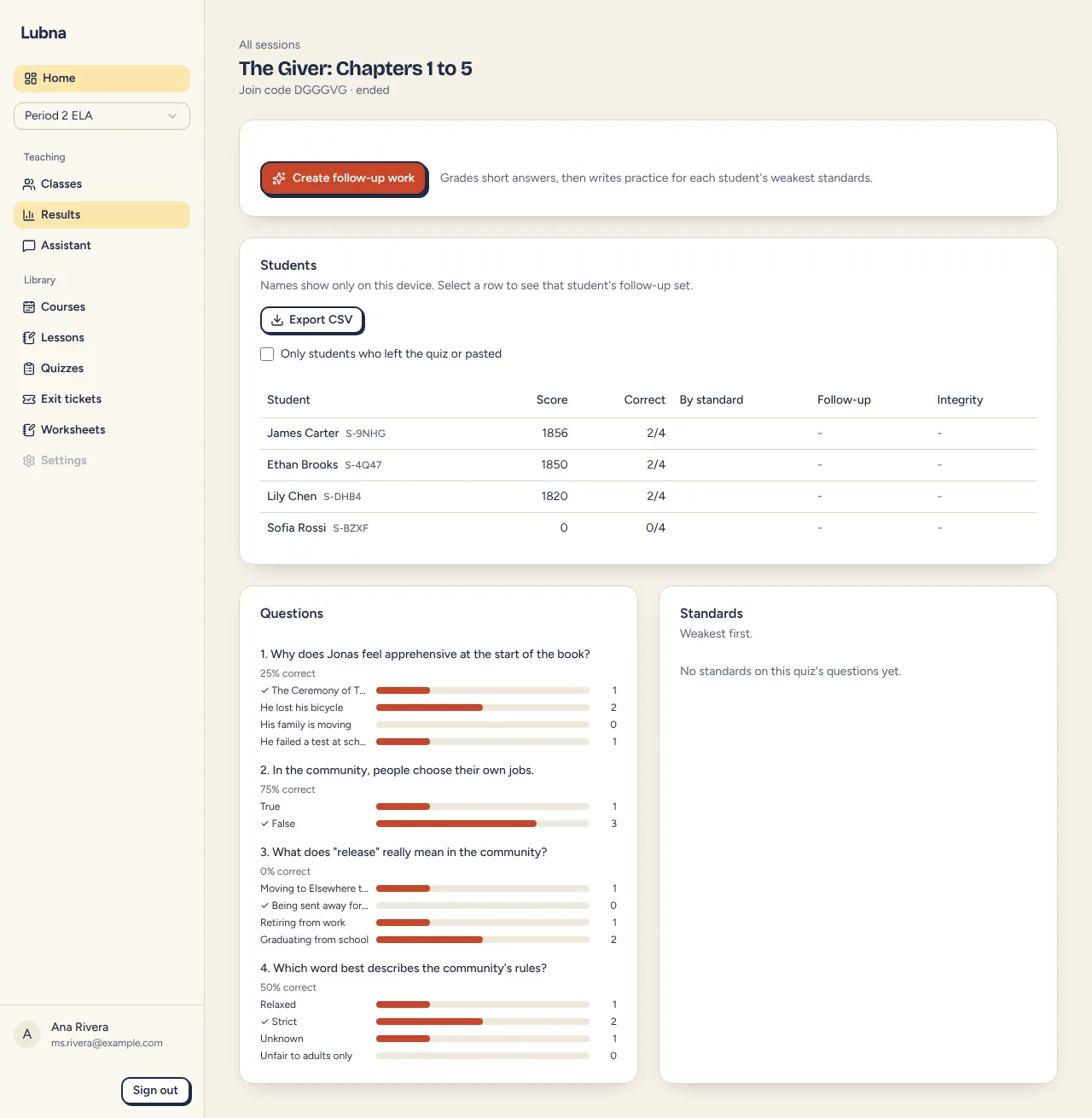
The page is headed by the quiz title, the join code and whether the session is live, ended, or homework that is open or closed.
For homework, a card at the top shows the due date and how many students have joined, started and finished. See Assign homework.
The Students table
Section titled “The Students table”Each row is one student. The columns are:
- Student: the name, with the student’s code or guest label next to it.
- Score: total points.
- Correct: how many they got right out of how many they answered, such as 7/9.
- By standard: a small badge for each standard, like “RL.7.2 2/3”. Hover for the full count.
- Follow-up: the status of their practice work. See Follow-up practice.
- Integrity: shown only if integrity signals were on.
Select a row to see that student’s follow-up practice under the table. Select it again to close.
Names show on your device only
Section titled “Names show on your device only”Student names come from the class list saved in your browser. They are never sent to Lubna’s servers. On a computer that does not have your class list, the table shows codes, nicknames or guest labels instead. Names do not appear in the exported file unless you export from a device that has them. See Student names.
Integrity column
Section titled “Integrity column”If you left integrity signals on, the Integrity column reads like “left 2×, 45 s away, pasted 1×”. It counts times a student left the quiz while a question was open, how long they were gone, and pastes into short answers. A dash means there is nothing to see.
Tick Only students who left the quiz or pasted to show just those students. These are hints, not proof. Nothing changes a student’s score. See Live quiz settings for exactly what is counted.
Team totals
Section titled “Team totals”If the quiz was played in teams, a Teams table lists each team’s rank, Score and Members. A team’s score is the average points per member, added up across questions.
Questions
Section titled “Questions”The Questions card lists each question with the percent of students who got it right. Each choice has a bar showing how many students chose it, and the right answer is marked with a tick. Use it to spot a question where many chose the same wrong answer.
- Polls show the number of responses instead of a percent correct.
- Ordering questions list the items in the correct order.
- Short answers waiting for grading say how many are “awaiting grading”.
Standards
Section titled “Standards”The Standards card shows how the class did on each standard, weakest first. It appears when your questions were tagged with standards.
Short answers
Section titled “Short answers”Short answer questions are not marked during the game. They are graded afterward by AI when you select Create follow-up work. Until then you see a badge such as “3 short answers ungraded”.
Export CSV
Section titled “Export CSV”Select Export CSV above the Students table. The file is made in your browser and named after the quiz. It has one row per student with their score, correct count, number answered and each answer, marked [correct], [incorrect] or [ungraded]. A Student name column is added only when names are available on your device.
Treat the file as student data. Keep it in a safe place, such as your school drive.