
Create a class
A class gives every student a private code, so you can run quizzes, exit tickets and homework without Lubna ever knowing their names.
Make the class
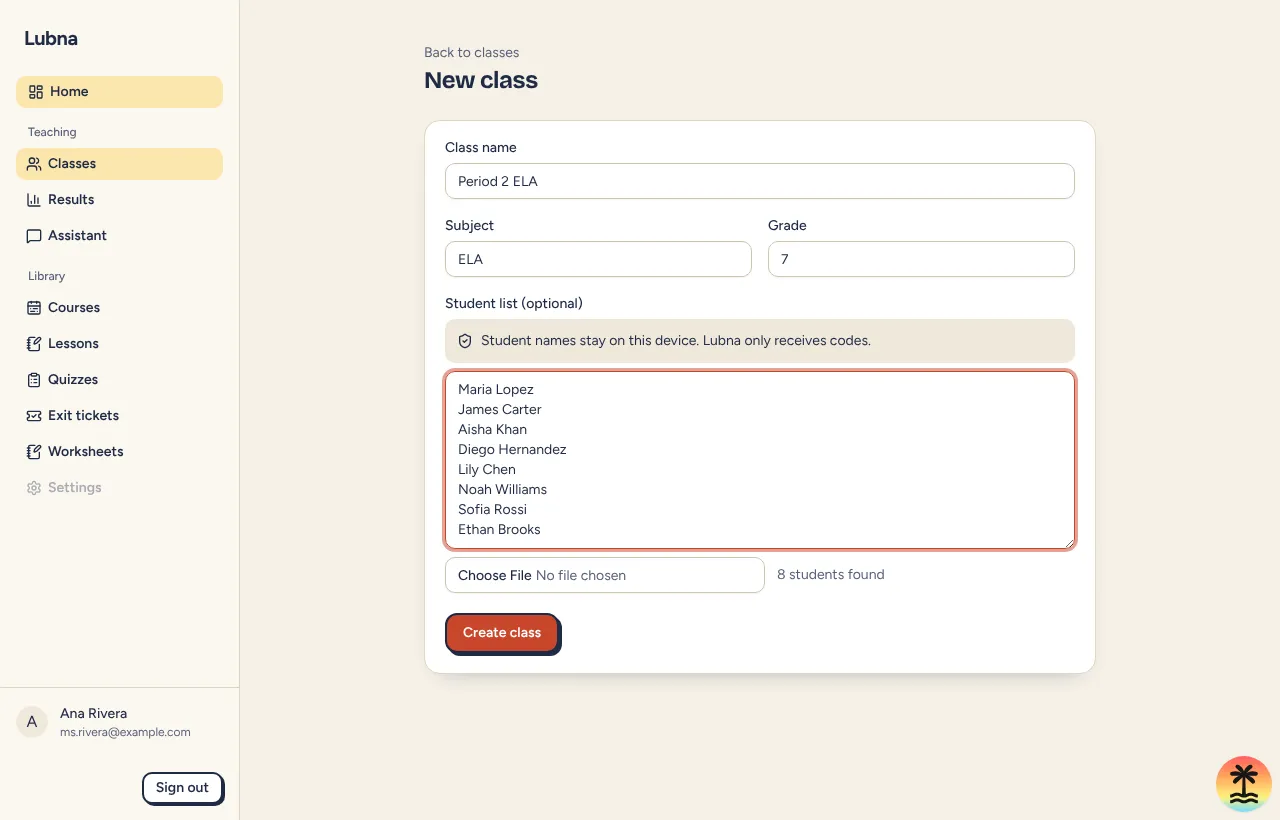
Section titled “Make the class”- In the sidebar, choose Classes, then New class. (On your dashboard’s first-run screen, choose Create a class.)
- Enter a Class name, such as “3rd period ELA”.
- Choose a Subject. The list suggests ELA, Social Studies, Math, Science and Other, and you can type your own.
- Enter the Grade, such as 7 or 6-8.
- Add your students (see below), or leave it empty and add them later.
- Select Create class.
Lubna opens your new class and makes it your current class.
Add your student list
Section titled “Add your student list”The Student list (optional) box says “Student names stay on this device. Lubna only receives codes.” You have two ways to fill it.
Paste a list
Section titled “Paste a list”Type or paste one student per line:
Maria LopezJames Carter“Last, First” also works. You can paste a CSV too.
Upload a file
Section titled “Upload a file”Use Upload a CSV to choose a .csv or .txt file. Lubna reads columns such as name, first and last name, grade, and supports. A OneRoster users.csv from your district works as well. Lubna keeps only the rows for students and skips teachers and other users.
Under the box you see “N students found” so you can check the count before you create the class.
What happens to the names
Section titled “What happens to the names”When you select Create class, your browser turns each name into a random code like S-4F2A. Lubna receives only the codes, grades and supports. The names stay in an encrypted list on your device. See Student names stay on your device.
Hand out codes
Section titled “Hand out codes”On the class page, open the Students tab and select Print code cards. Your browser builds a card for each student with their code and the address where they join. If you have the names on this device, the card shows the name too. Select Print, cut the cards, and give each student their own.
To print one student’s card, use Manage on their row. See Manage students.
Save a name list for other devices
Section titled “Save a name list for other devices”On the Students tab, Export name list saves an encrypted file you can import on another computer. Do this once after you set up the class, and again after you rename students or replace codes.
Good to know
Section titled “Good to know”- Codes are checked so they cannot be read as something silly. If an older code could be, the Students tab offers Replace all unsafe codes.
- Students with the same name are flagged when you add more students later, and skipped unless you choose to add them.
- Next step: look around the class workspace.