
Plan a lesson
Lesson plans save you the blank page. You describe what students should learn, pick the standards, and Lubna drafts a plan you can edit.
Make a new lesson
Section titled “Make a new lesson”- Open Lessons in the sidebar and choose New lesson plan.
- Set the Grade (6 to 8), Subject (ELA or Social Studies) and Minutes.
- Under Describe your lesson, write what students should learn and do. Do not include student names or contact details.
- Optionally add a Lesson title. If you leave it blank, Lubna suggests one.
- Under Illinois standards, select at least one.
- Choose Generate lesson plan.
A progress panel shows the steps. Use Stop to cancel, or Try again if it fails.
You can also start from pages you already have. See Start a lesson from files.
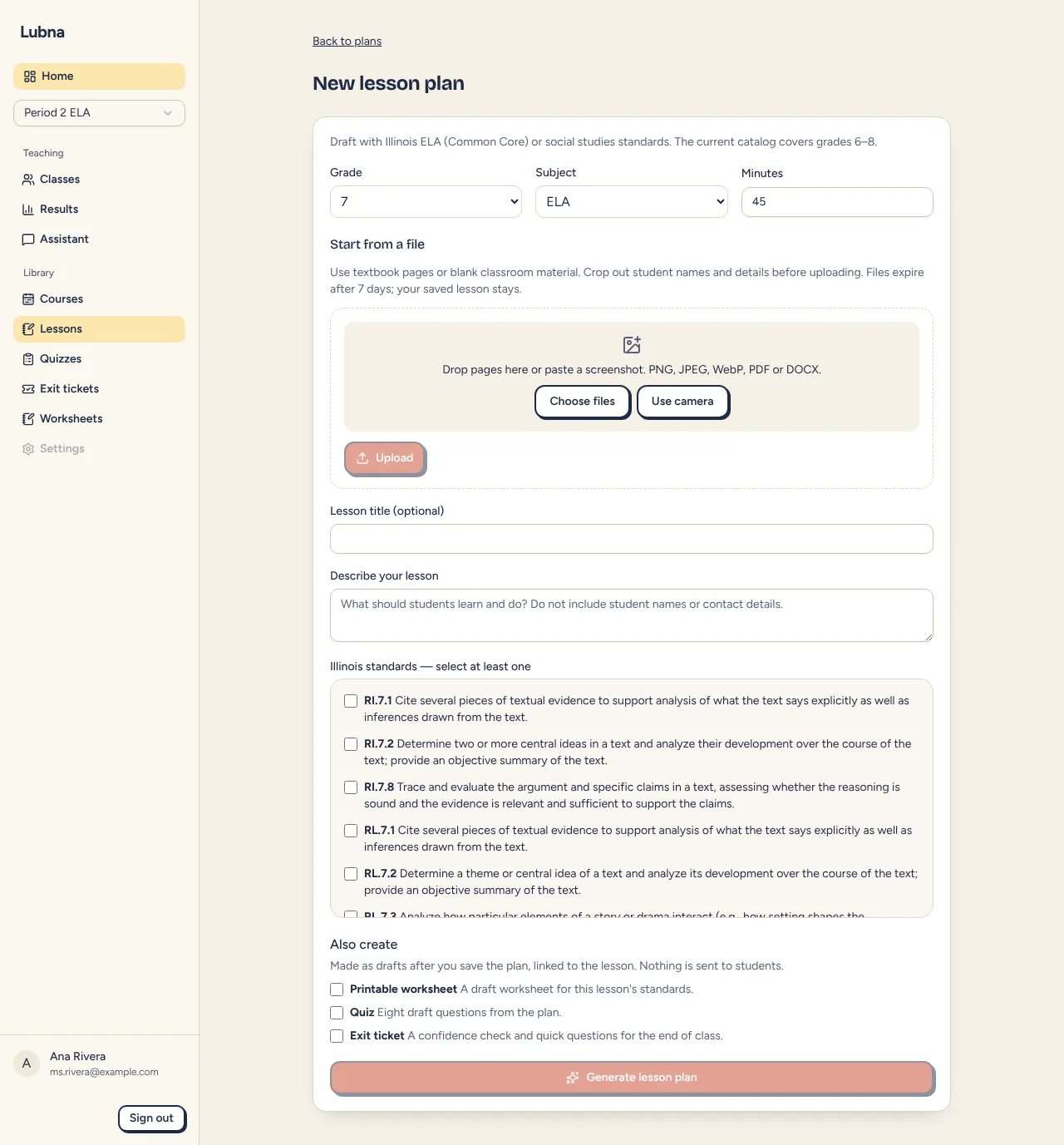
Also create
Section titled “Also create”Under the standards you may see an Also create list. Tick what you want and Lubna makes these as drafts after you save the plan:
- Printable worksheet
- Quiz: eight draft questions from the plan
- Exit ticket: a confidence check and quick questions. If you have more than one class, pick which one under Exit ticket for.
- Suggested video: the best matching YouTube video
Everything is linked to the lesson and nothing is sent to students. After you save, a panel shows each item as it is made. If one fails, use its Retry; the others still finish. Lubna remembers your choices on this device.
Exit tickets only show up if you have a class. Videos only show up if video suggestions are switched on for your account.
Review and edit
Section titled “Review and edit”The draft opens as one page you can scroll. On a computer, a column on the right holds Save plan and a short outline. Select a section name there to jump to it. On a phone, Save plan sits at the top so it stays in reach.
- Title and What the lesson is about are in the details box at the top. Under them you see the grade, subject, length and the Illinois standards for the lesson.
- Each section has its own numbered box: Objectives, Warm-up, Activities, Lubna quiz slot and Exit ticket. A short hint under each name says what belongs there.
- Each section box has a small formatting bar with Bold, Italic, Heading, Bulleted list, Numbered list, Undo and Redo. Type right in the box. You do not need to know any code.
- Each section also has a row of standards. Tap a standard to mark whether that section addresses it. Standards you have marked are filled in.
Lubna writes the activities as numbered steps with times, so you can see how the minutes add up. Edit them like any other text.
The lines under Save plan tell you where you stand: “This draft is not saved yet.”, “You have unsaved changes.” or “All changes saved.” Choose Save plan when you are happy. Until then the draft is not saved.
Plans you saved before this update open as they were. Their text just shows up in the same boxes.
Open, copy and reuse
Section titled “Open, copy and reuse”Your saved plans are listed under Lesson plans. Open one to keep editing. Duplicate (on a wide screen, Duplicate saved plan) makes a copy, handy for a new period or next year.
Linked activities
Section titled “Linked activities”Below the sections, Linked activities collects everything tied to this lesson. These items stay in your library. The lesson only links to them. On a computer you can jump here from Linked activities in the side outline.
- Quizzes. Choose Make a quiz from this lesson, pick how many Questions, and Lubna drafts a quiz and opens it in the editor. Or pick one under Or link one from your library (Choose a quiz) and choose Link. Remove from lesson only unlinks it; the quiz stays in your library. A published quiz can be run live right from here. A draft quiz says to publish it first.
- Exit tickets, with a Create exit ticket link. You will also find this link in the Exit ticket section.
- Worksheets, with a Create worksheet link. See Make a worksheet.
- Videos. See Lesson videos.
- Runs from this lesson: live games and homework started from this lesson, with the class, date and number of students. It only appears once there is a run.
If a course plan created the lesson, a link at the top takes you back to it. See Plan a course.
Good to know
Section titled “Good to know”- If you type a student name in your description, Lubna swaps it for a code before anything is sent. Student names stay in your browser.
- The AI only works with your description and the standards, never with student data.