
Make a worksheet
Worksheets are printable practice pages. Lubna writes an original draft, you edit it, and you print it, with or without an answer key.
Start a worksheet
Section titled “Start a worksheet”There are two ways in:
- From a lesson. On a saved lesson, under Activities for this lesson, choose Create worksheet. Lubna uses the lesson’s grade, subject, topic and standards.
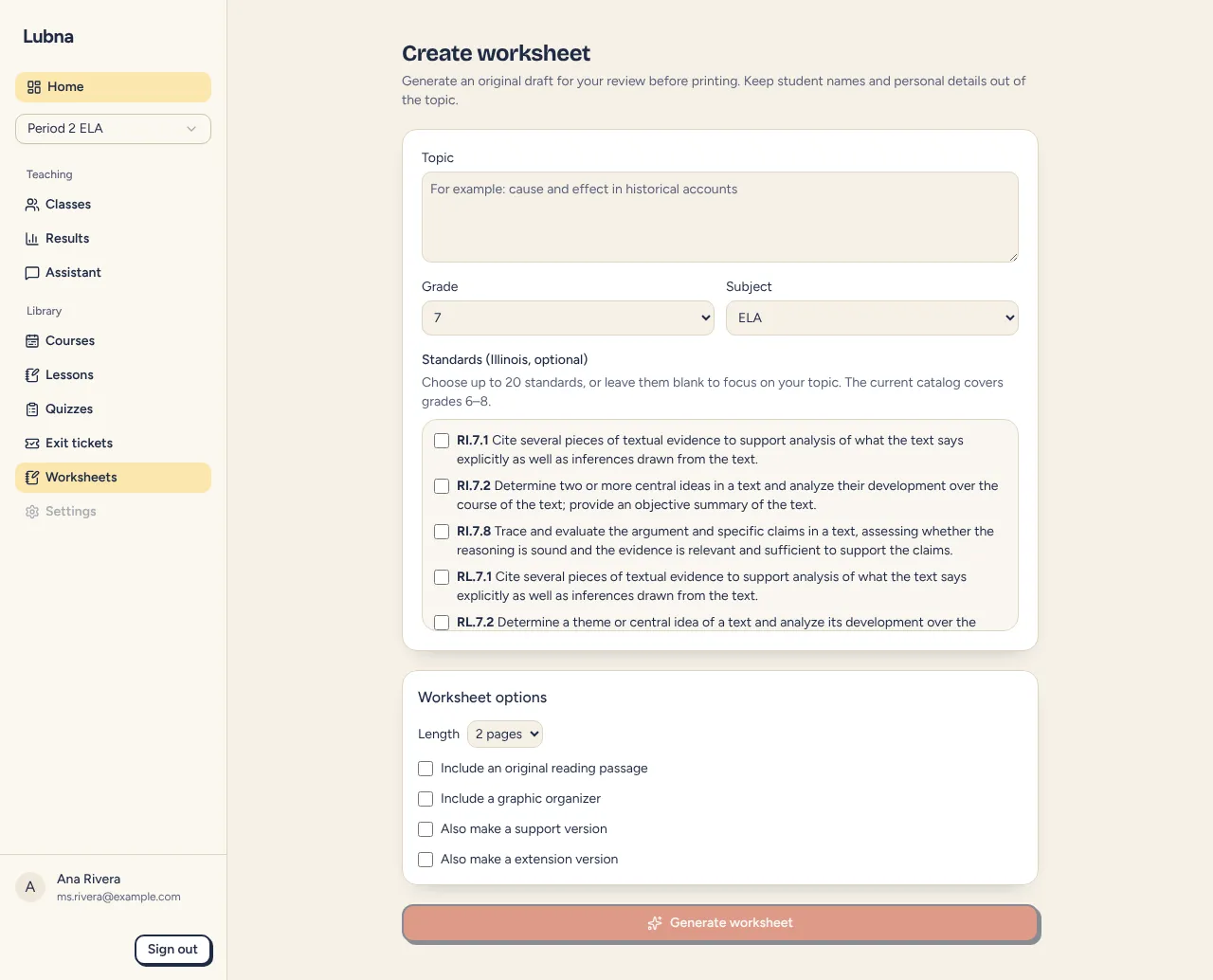
- From a topic. Open Worksheets and choose Create worksheet. Then fill in:
- Topic, for example “cause and effect in historical accounts”. Keep student names out.
- Grade and Subject.
- Standards (Illinois, optional). Choose up to 20, or leave them blank to focus on your topic.
Choose options
Section titled “Choose options”Under Worksheet options:
- Length: 1 page or 2 pages.
- Include an original reading passage
- Include a graphic organizer
- Also make a support version and Also make an extension version, for students who need more help or more challenge.
Choose Generate worksheet. A progress panel shows the steps. Stop cancels it, and Try again appears if it fails. When it finishes, you land in the editor.
Worksheets can include short response, multiple choice, fill in the blank, matching, vocabulary, graphic organizer and reading passage sections.
The editor has your edits on the left and a live preview of the printed page on the right. On a phone, the preview sits below the edits and the Save changes bar stays at the top.
- Change the Worksheet title and Instructions for students.
- Below them, the page shows how many sections there are. Each section has a number, its type and, if it has one, the standard it covers.
- Each type of section has its own fields, so you edit it the way it will look:
- Short response: Prompt, the number of Answer lines, and a Model answer for the answer key only.
- Multiple choice: the Question and the Choices. Use the round button beside a choice to mark the correct one. You can add or remove choices.
- Fill in the blank: the Text, with ___ where each blank goes, a Word bank, and the Answers in order for the answer key only.
- Matching: pairs of a term and its match. You can add or remove pairs.
- Vocabulary: the Word, its Definition and an Example sentence for the answer key only.
- Graphic organizer: pick the Organizer (T-chart, Venn diagram, Cause and effect, Sequence or Main idea and details), write the Prompt and fill in the Box labels.
- Reading passage: the Passage (400 words or fewer) and its Questions.
- On each section, the buttons at the right are Move up, Move down, Write a new version and Remove section.
- Write a new version asks Lubna to rewrite just that section. Use it when one part is off and the rest is fine. It replaces what is in that section, so copy anything you want to keep first.
- Remove section deletes a section. A worksheet always keeps at least one.
Choose Save changes to keep your work. The button reads Saved when nothing has changed. If a section is missing something it needs, such as a blank in a fill in the blank, Lubna tells you which section to fix before it saves.
Support and extension copies
Section titled “Support and extension copies”If you asked for them, each copy is its own worksheet. Find them in the Worksheets list, marked “differentiated version”, and on the lesson page marked “differentiated copy”.
- Tick Print answer key if you want a teacher copy on a separate last page.
- Choose Print or PDF.
The page prints on US letter paper with a line for the student’s name, date and period at the top. Choose “Save as PDF” in your print window to keep a digital copy.
Good to know
Section titled “Good to know”- Worksheets are always original text written by the AI, not copies of published material.
- If you type a student name in your topic, Lubna swaps it for a code before sending. Student names stay in your browser.