
Manage classes and students
Rosters change. Students join mid-year, move away or need a new code. This page covers the changes you can make to a class and to individual students.
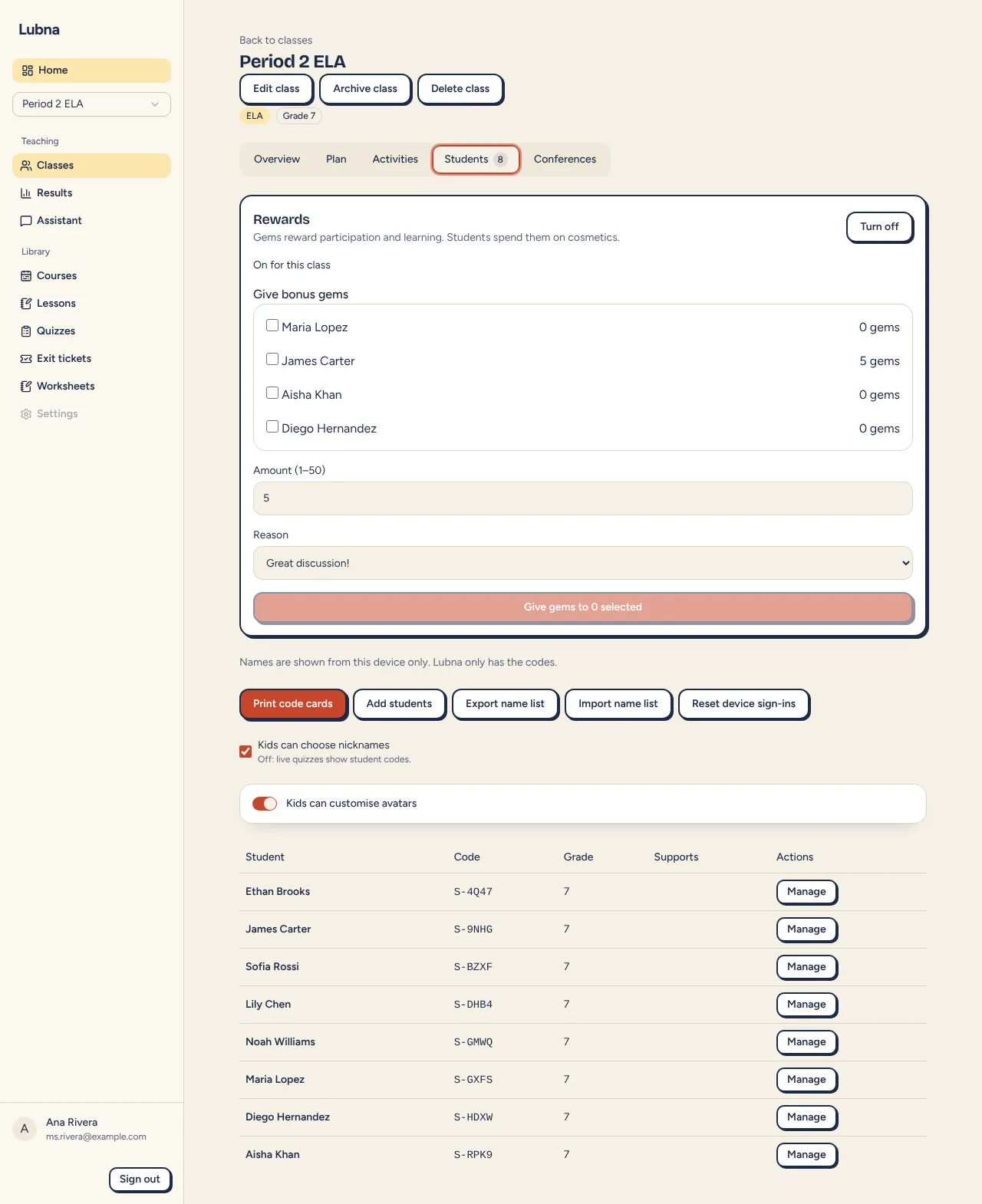
Edit a class
Section titled “Edit a class”- Open the class.
- Select Edit class under the class name.
- Change the Class name, Subject or Grade.
- Select Save class.
The dialog also shows the class’s privacy mode. See Privacy modes.
Archive and restore a class
Section titled “Archive and restore a class”Select Archive class when a term ends. An archived class keeps its results, but students cannot join its activities. It moves to Archived classes on the Classes page.
To bring it back, open the class and select Restore class.
Delete a class
Section titled “Delete a class”Select Delete class, type the class name to confirm, then select Delete permanently.
This deletes the roster, activities, responses, practice, conference data and the names on this device. It cannot be undone. Only the primary teacher of a class can delete it.
Move a class to your school
Section titled “Move a class to your school”If you belong to a school, you can move one of your own classes into it. Nothing moves automatically. You choose each class, one at a time.
- Open the class in My classes.
- Select Move to school next to Edit class. The button only shows if you belong to a school.
- If you belong to more than one school, pick the School.
- Read the note, then select Move to and the school’s name.
You switch to the school afterward, and the class is there.
What to expect:
- Only classes that have not run a quiz can move. If the class has already run a live quiz or homework, the dialog says it stays in your own workspace, and you can make a new class in the school instead.
- The roster, exit tickets, notes and conferences go with the class.
- Links to a course and to lessons are cleared. Your courses, lessons and quizzes stay in My classes. Your library does not move.
- Students sign in again with their code if they had saved their device.
- Only the class’s primary teacher can move it.
See Schools and districts for how workspaces work.
Add students
Section titled “Add students”- On the Students tab, select Add students.
- Paste names, one per line, or upload a CSV.
- Optionally set a Default grade and tick Supports (ELL, IEP, 504, EXT-TIME, READ-ALOUD, GIFTED or OTHER).
- Select Preview students to check the list.
- Select Add students.
Names already in the class, or listed twice, are skipped. Tick Add duplicate names anyway if you really have two students with the same name.
If other students’ names are not on this device, a note tells you new names will be saved here only.
Rename a student
Section titled “Rename a student”Select a student’s name in the table, change it, and select Save name. Names are saved on this device only, so export the name list again for your other devices. If the name list is not on this device, import it first. See Student names stay on your device.
Change grade or supports
Section titled “Change grade or supports”- Select Manage on the student’s row.
- Change the Grade and Supports.
- Select Save grade and supports.
Supports are short codes only. Never type narrative notes about a student into Lubna.
Replace a code
Section titled “Replace a code”In Manage, select New code. The student gets a new code and the old one stops working. Lubna offers Reprint this student’s code card. Export the name list again for other devices.
If any codes could be read as something silly, the Students tab shows a note with Replace all unsafe codes.
Remove, restore or delete a student
Section titled “Remove, restore or delete a student”- Remove from class (in Manage) takes the student out of the roster but keeps their past results and notes. They show under Removed students.
- Restore student puts them back. It does not bring back an old account link or remembered device.
- Delete permanently erases the student’s responses, practice, notes, conference data and the name on this device. Confirm with Confirm permanent delete. This cannot be undone.
Reset device sign-ins
Section titled “Reset device sign-ins”Students can ask a device to remember them. If a shared device got mixed up, select Reset device sign-ins, then Reset. Every remembered device is signed out, and students enter their code again.
Unlink a student account
Section titled “Unlink a student account”If your class uses verified school mode, a Linked student accounts section lists students who signed in with their school account. Select Unlink next to a code if the wrong person claimed it.
Good to know
Section titled “Good to know”- Names stay in your browser. Lubna only handles codes.
- Printing cards is covered in Create a class.