
Live quiz settings
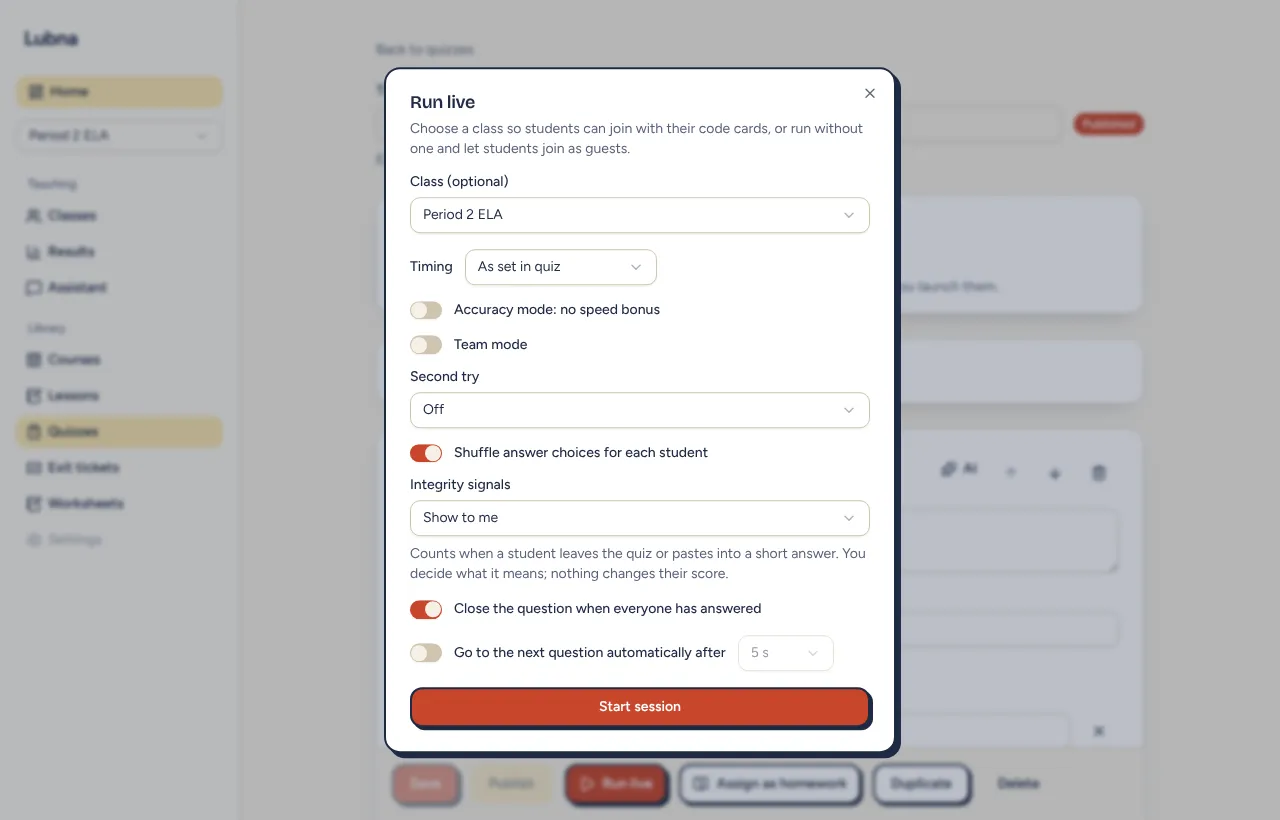
When you select Run live on a quiz, a settings box appears before the game starts. Every setting has a sensible default, so you can select Start session right away. This page explains each one.
Scoring
Section titled “Scoring”By default, faster correct answers earn more points. Points shrink to half as the timer runs out.
Turn on Accuracy mode: no speed bonus to give full points for any correct answer, however fast. Choose this when you want to reward thinking over speed. Questions with no time limit always score this way.
Second try
Section titled “Second try”The Second try menu lets students try again after a wrong answer:
- Off: one try per question.
- No points: they can try again, but a second correct answer earns nothing.
- Half points: a second correct answer earns half the points.
Answer time
Section titled “Answer time”The Timing menu controls the clock for the whole game:
- As set in quiz uses each question’s own time limit.
- Override all gives every question the same time. Pick 20, 30, 45, 60, 90, 120, 180 or 300 seconds.
- No limits removes all timers. You close each question yourself.
Auto-close and auto-next
Section titled “Auto-close and auto-next”- Close the question when everyone has answered is on by default. A question closes once every connected student has answered. Students who are disconnected don’t hold it up. If second tries are on, a student who still has a try left counts as not finished. It never closes before at least one answer is in.
- Go to the next question automatically after moves on by itself after the reveal. Choose 5, 8 or 12 seconds. A ring counts down. Select Hold to stop it, or Next to go early.
Team mode
Section titled “Team mode”Turn on Team mode to play in teams. Choose from 2 to 6 teams (4 is the default). Students are placed on the smallest team as they join, so teams stay balanced. In the lobby you can move anyone with the menu beside their name. Moving players works only before you start.
A team’s score for a question is the average points of all its members. Players who skip count as zero, so uneven teams stay fair. Individual scores still count. The reveal and the results page show team standings. Student screens show team standings, not lists of other players.
Late joiners go to the smallest team. Teams are not rebalanced mid-game.
Shuffle
Section titled “Shuffle”- Shuffle answer choices for each student is on by default. Each student sees the choices in their own order, which makes copying a neighbor’s screen less useful. Your host screen then shows choices without letters or colors, since they would not match what students see.
- Shuffle question order is a homework setting. See Homework.
Integrity signals
Section titled “Integrity signals”The Integrity signals menu has two choices: Show to me (the default) and Off.
When on, Lubna counts:
- how many times a student left the quiz (switched tabs or windows for more than about 2 seconds) while a question was open,
- how long they were away, and
- how many times they pasted text into a short answer, and how many characters.
You see this during the game as a small eye with a number by the student’s name, a “pasted” tag, and a “rejoined” tag if a second device took over their seat. After the game it appears in an Integrity column on the results page.
What is not counted: anything between questions, what a student looked at, screenshots, or what is on their screen. There is no camera, microphone or location. Nothing changes a student’s score. These are signals, not proof, and you decide what they mean. A student who glances at a notification may leave for a moment.
Students are told on the join screen that their teacher can see if they leave the quiz. When you turn signals off, student browsers send nothing. The counts are for you only, are deleted with the session, and are never sent to the AI.
During the game
Section titled “During the game”- Lock joining stops new students from joining. Students who already joined can reconnect. The button changes to Unlock joining. Use it once everyone is in.
- Remove a player with the X beside their name, then confirm. They cannot get back in.
- A student who opens the quiz on a second device takes over on that device. The first device is signed out.
- If a large group joins in a very short time, a few may be asked to try again in a minute.
For the full run-through, see Run a live quiz.