
Exit tickets
An exit ticket is a short check at the end of a lesson. Students rate how confident they feel, answer one or two quick questions and, if you like, tell you what is still unclear. You see the results as they come in.
Create an exit ticket
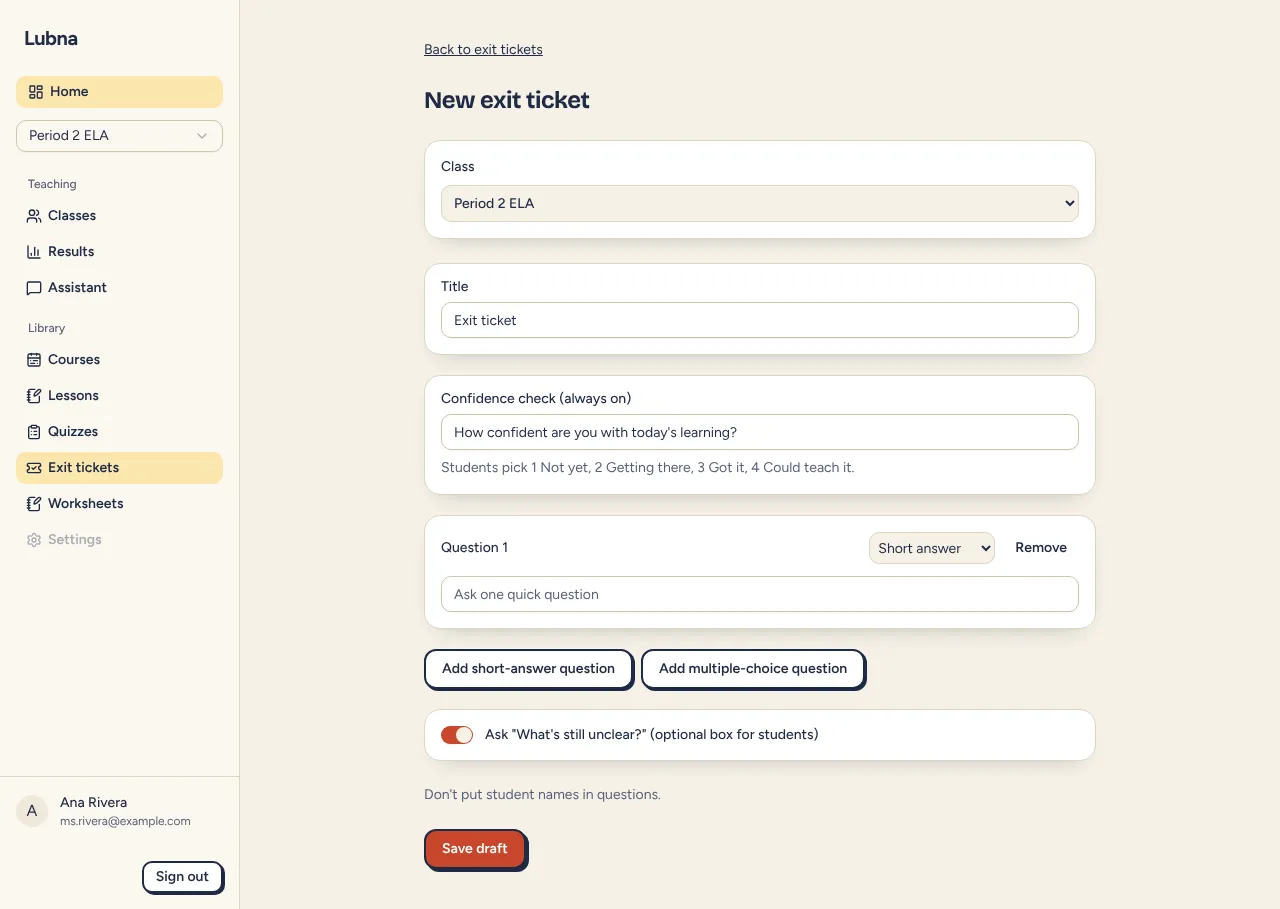
Section titled “Create an exit ticket”- Open Exit tickets in your dashboard and select New exit ticket. You can also start from a lesson plan.
- Pick the Class. You need a class with student codes first.
- Edit the Title.
- Look at the Confidence check (always on). The default question is “How confident are you with today’s learning?” You can reword it. Students choose 1 Not yet, 2 Getting there, 3 Got it or 4 Could teach it.
- Add up to two questions with Add short-answer question or Add multiple-choice question. For multiple choice, enter 2 to 4 choices, and optionally mark the correct one.
- Keep Ask “What’s still unclear?” on to give students an optional box to write in.
- Select Save draft.
Please do not put student names in the questions.
Draft from a lesson
Section titled “Draft from a lesson”When you start an exit ticket from a lesson plan, Lubna drafts questions from the lesson right away. Select Suggest questions from the lesson to try again. A note says “Suggested by Lubna”, and Undo restores what you had. If AI suggestions are not available, Lubna uses the first sentence of the lesson’s own exit ticket instead.
Open and close
Section titled “Open and close”On the ticket page:
- Open makes the ticket live and gives it a 6-character code.
- Close stops answers.
- Reopen lets students answer again.
- Edit changes an open ticket. Once any student has answered, the questions are locked, but the title and confidence prompt can still change.
Select Present to show the address and code in full screen. Press Escape to leave.
How students answer
Section titled “How students answer”Students go to the exit page address shown on your screen. They enter:
- the ticket code, and
- their own student code from their code card, like S-4K2P.
They pick a confidence level, answer the questions and send it. They can change their answers until you close the ticket. See Exit tickets for students.
See the results
Section titled “See the results”The ticket page updates every few seconds while it is open. It shows:
- how many students have submitted, such as “18 of 24 submitted”, and the average confidence,
- a bar for each confidence level,
- each question: choice counts and percent correct, or the written answers, and
- a Students table with each student’s confidence, answers and unclear note. Students who have not answered say “Not submitted yet”.
Names are filled in on your device from your class list. The server sees only codes.
Group what is unclear
Section titled “Group what is unclear”If students wrote in the unclear box, the What’s still unclear panel can sort the answers into themes.
- Select Group what’s unclear.
- Lubna removes names from the text on your device first, then the AI groups the answers.
- Each theme shows a label, a short description, which students wrote about it and a Reteach idea.
Use Group again after more answers come in. A note tells you when new answers arrived since the last grouping. The AI only sees the text of the answers with no names. Read the themes before acting on them.