
Create a quiz
A quiz is the starting point for everything game-style in Lubna. You can run it live, assign it as homework, and use the results to build follow-up practice. This page covers making a quiz from a topic. To start from a video, a web page or a file instead, see Draft a quiz from a source.
Draft a quiz with AI
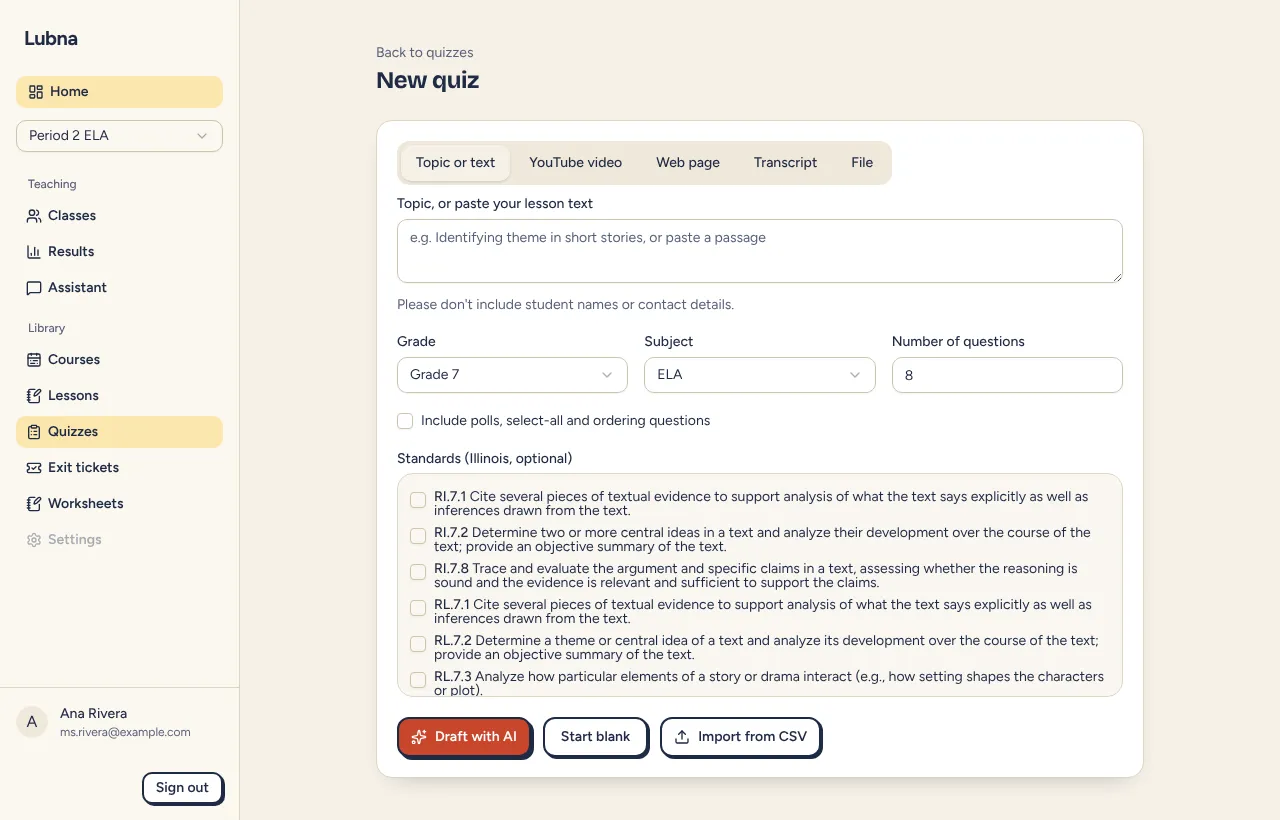
Section titled “Draft a quiz with AI”- Open Quizzes in your dashboard and select New quiz.
- On the Topic or text tab, type a topic (“Identifying theme in short stories”) or paste a passage from your lesson.
- Choose the Grade (6, 7 or 8), the Subject (ELA or Social Studies) and the Number of questions (3 to 15).
- Tick Include polls, select-all and ordering questions if you want a mix of question types. Leave it off for mostly multiple choice, with a few true/false and short answer questions.
- Under Standards (Illinois, optional), tick any standards you want the questions to match. They are tagged on each question so results can show how the class did by standard.
- Select Draft with AI.
Lubna reads your topic, writes the questions and checks the answers. This usually takes under a minute. You can cancel while it works.
Other ways to begin: Start blank gives you one empty question to fill in, and Import from CSV brings in questions from a spreadsheet (see Import and export questions).
Review the draft
Section titled “Review the draft”The next screen is titled Review your quiz. Nothing is saved until you select Save, so you can look everything over first.
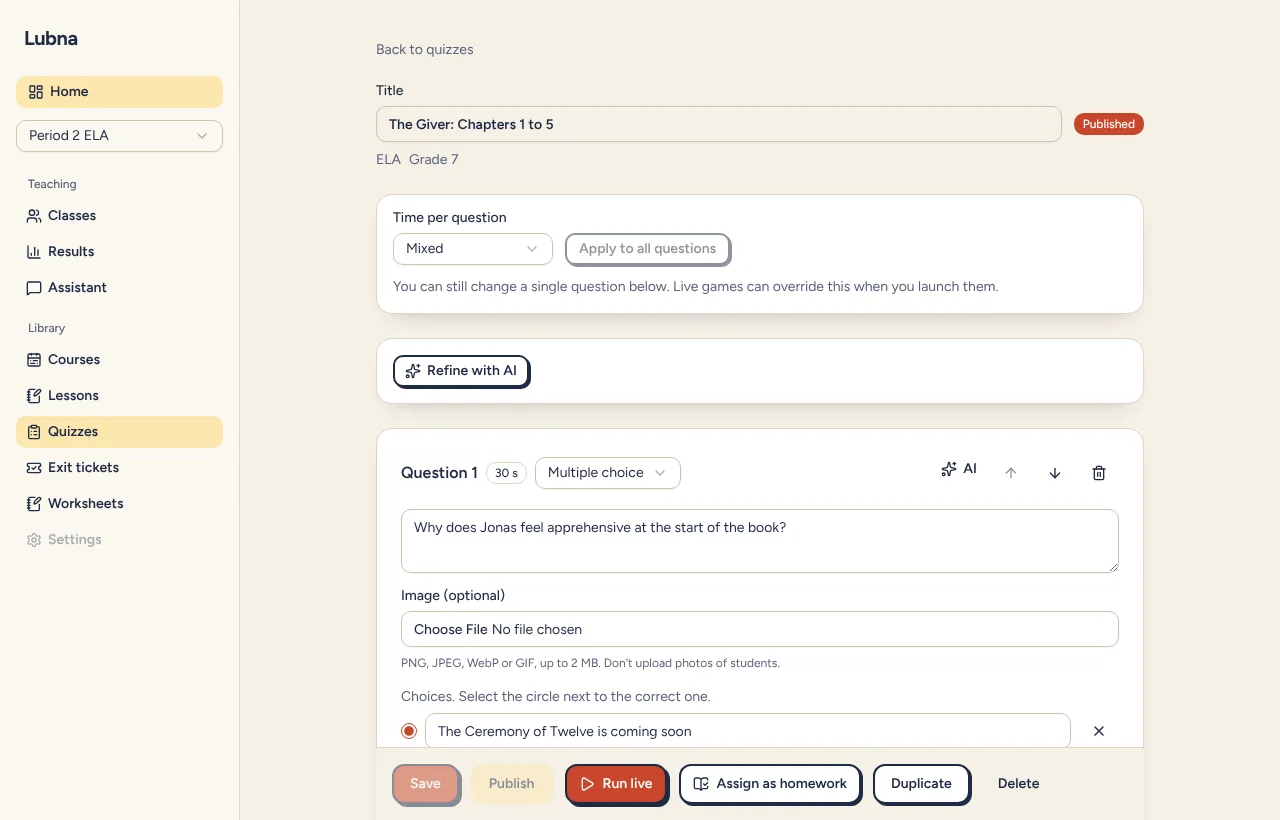
- Change the Title. Lubna suggests one, but it is yours to edit.
- Read each question. Check the marked correct answer and the explanation.
- Edit anything by hand. See Edit questions.
- Ask the AI to adjust a question or the whole quiz. See Change questions with AI.
- Set the Time per question for all questions at once, then select Apply to all questions. You can still change a single question afterward.
Save and publish
Section titled “Save and publish”Select Save at the bottom of the page. The quiz now appears in your quiz list as a Draft.
Select Publish when it is ready to use. Publishing saves your latest changes first. A published quiz shows a Published badge, and the Run live and Assign as homework buttons appear. If you change a published quiz, save again before those buttons come back.
You can only use a quiz with students after it is published. Drafts are for you.
Duplicate a quiz
Section titled “Duplicate a quiz”Open a saved quiz and select Duplicate. Lubna makes a new draft called “Copy of” followed by the original title, with all the questions. Use it to make a harder version, or a version for another class, without touching the original.
Duplicate is turned off while you have unsaved changes. Save first.
Share with your class
Section titled “Share with your class”Once a live quiz is running, the lobby shows a large join code. Two buttons sit under it:
- Share to Google Classroom opens Google Classroom’s share page with a join link and the quiz title. Pick a class and post it as an assignment or announcement.
- Copy join link copies a link that opens the join screen with the code already filled in.
Lubna does not load any Google scripts on your pages. The button is just a link. For the full live flow, see Run a live quiz.
Good to know
Section titled “Good to know”- A quiz holds up to 100 questions.
- Delete a quiz with Delete at the bottom of the editor. This cannot be undone.
- The AI sees only your topic or source text and the grade and subject. It never sees student names.