
Schedule conferences
Parent-teacher conferences let families book a time with you without making an account. You set the days and times. Families pick a slot from a private link.
Create an event
Section titled “Create an event”- Open a class and go to the Conferences tab.
- Click Plan conferences. (To see every event, including ones with no class, click All conference events.)
- Fill in Event title, like “Fall conferences”.
- Add Location or video link, like “Room 204” or a meeting link.
- Set Minutes per conference.
- Under Class (optional), choose the class. Pick No class · codes only if you do not want to link one.
- Under Conference windows, set a start and end. Click Add window to add more days or blocks.
- Under Breaks, click Add break for lunch or a pause. Any slot that overlaps a break is left out.
- Click Create event and generate slots.
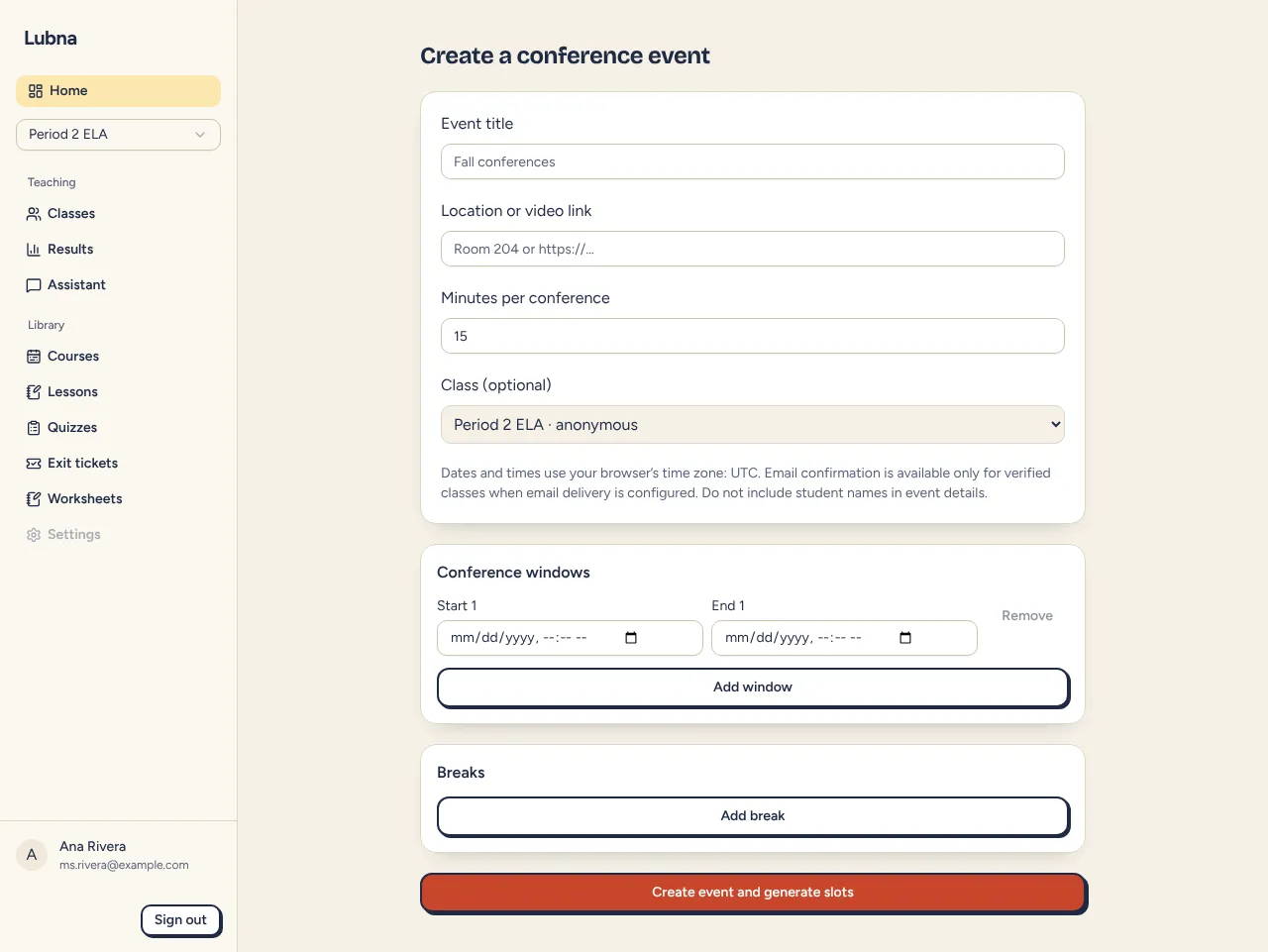
Lubna splits each window into slots. A leftover bit at the end of a window that is too short is skipped.
Share the booking link
Section titled “Share the booking link”Your event page shows a Private family sign-up link. Click Copy link and send it to families. Open booking page shows what they will see.
What families do
Section titled “What families do”Families need no account.
- They choose a time from the list. Times are shown in the event’s time zone, which is your browser’s time zone when you create it.
- They enter a student code or a made-up alias with digits, like S-4K2P or OWL-42. They should not type a student’s name.
- They click Book conference.
- They save the private link on the confirmation. It is the only way to see, change or cancel the booking.
To move a booking, they open their link, pick a new time and click Rebook selected time. To cancel, they click Cancel booking, and the slot opens up again. Each code can have one booking per event.
If email is set up for your school and the class is a verified class, families also see an optional email box. The address is used once to send a confirmation and is not stored. If it is not set up, you will not see that box. Bookings work either way.
Your schedule
Section titled “Your schedule”The schedule lists each slot, who booked it and a Brief link. Click Refresh schedule to see new bookings. Student names are filled in on your device from your roster, so Lubna’s servers only hold codes.
- Export calendar (.ics) downloads booked slots for your calendar app.
- Print prints the schedule without the buttons.
Good to know
Section titled “Good to know”- Times use your browser’s time zone. Check it on the form before you create the event.
- Do not put student names in the event title or location.
- A lost family link can’t be looked up by code. If a family loses it, you can see their booking on your schedule and help them from there.
- Ready for the meetings? See Prep packs.