
Plan a course
A course plan lays out a whole semester or year. Lubna drafts the units for you, shows which standards are covered, and helps you turn each unit into a list of lessons.
Create a course plan
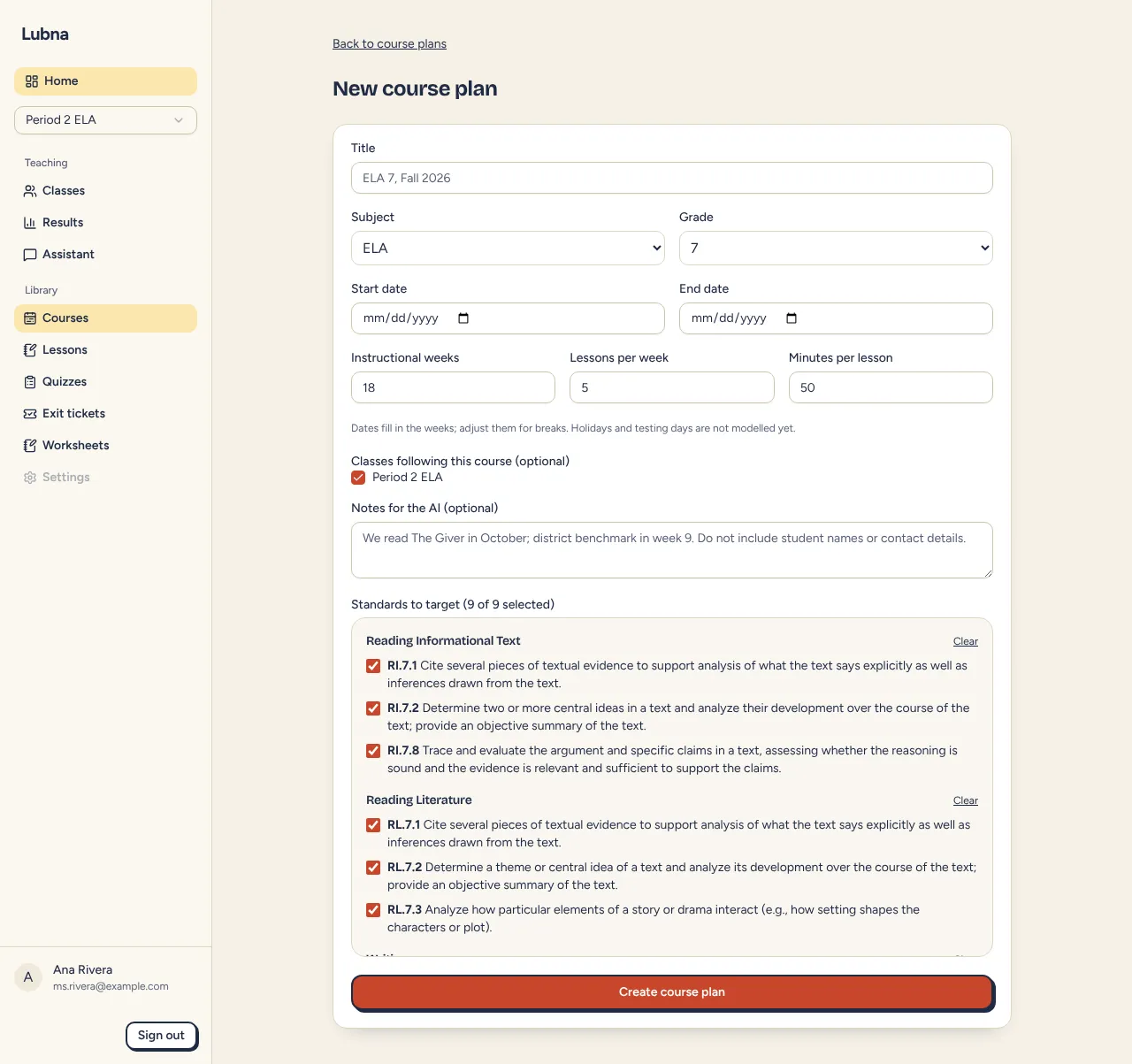
Section titled “Create a course plan”- Open Courses in the sidebar and choose New course plan.
- Fill in the basics:
- Title, for example “ELA 7, Fall 2026”.
- Subject (ELA or Social Studies) and Grade.
- Start date and End date, if you know them. They fill in the number of weeks for you. Change the weeks by hand if you have breaks.
- Instructional weeks, Lessons per week and Minutes per lesson.
- If you have classes, tick the ones under Classes following this course. This is optional. Your current class is ticked for you.
- Add Notes for the AI if they help, such as “We read The Giver in October.” Leave out student names and contact details.
- Under Standards to target, pick the Illinois standards this course should cover. They start all selected. Use Clear or Select all on a strand to change many at once.
- Choose Create course plan.
Draft the units
Section titled “Draft the units”- On your new plan, choose Generate units.
- A progress panel shows what Lubna is doing. Use Stop to cancel. If something goes wrong, choose Try again.
- The draft units are saved right away. Each unit has a title, summary, number of weeks, up to three essential questions, a summative assessment and the standards it covers.
Edit anything you like. Use the arrow buttons to move a unit up or down, Remove to delete it, and Add unit to write your own. Choose Save units when you are done. A line near the top tells you how many weeks the units use out of the weeks in your course.
If you choose Generate units again, Lubna asks before it replaces your current units. Lesson plans you already drafted stay in your lesson plans.
See which standards are covered
Section titled “See which standards are covered”The Coverage panel on the right lists every standard you targeted. Each one has a label:
- In lessons: a lesson plan covers it.
- Planned: a unit or a lesson row covers it, but no lesson plan exists yet.
- Missing: nothing covers it yet.
Select a standard to highlight the units and lessons that cover it. Standards you did not target are tucked under Not targeted.
Plan the lessons inside a unit
Section titled “Plan the lessons inside a unit”- Save your units first. Then, on a unit, choose Lessons.
- Choose Plan lessons to have Lubna draft a sequence of lessons for the unit. Or choose Add lesson and write your own.
- Each lesson row has a title, minutes, a topic or focus, and standard checkboxes. Reorder with the arrows, or Remove a row.
- Choose Save lessons.
- On a row, choose Draft lesson to write the full lesson plan. Or choose Draft all lessons in this unit to do them one after another.
- When a lesson plan exists, the button becomes Open, and takes you to the lesson. See Plan a lesson.
A row needs at least one standard before you can draft it.
Status, copies and classes
Section titled “Status, copies and classes”- Use the Status menu to mark a plan Draft, Active or Archived.
- Course settings lets you change dates, weeks, classes and standards.
- Duplicate makes a copy you can adjust for next year.
- Delete removes the plan, its units and its lesson rows. Lesson plans you drafted stay in your lesson plans.
Classes you tick under Classes following this course are the ones the plan is for. You can change them any time in Course settings.
Good to know
Section titled “Good to know”- The AI sees your standards, dates and notes. It does not see student names.
- Drafting many lessons can take a while. A counter shows how far along it is, and you can stop at any time.