
Import and export questions
Already have questions in a spreadsheet? Import them instead of retyping. You can also export a quiz to keep a copy or edit it in a spreadsheet.
Import questions
Section titled “Import questions”- Open New quiz and select Import from CSV. Or open an existing quiz and select Import questions at the bottom of the question list.
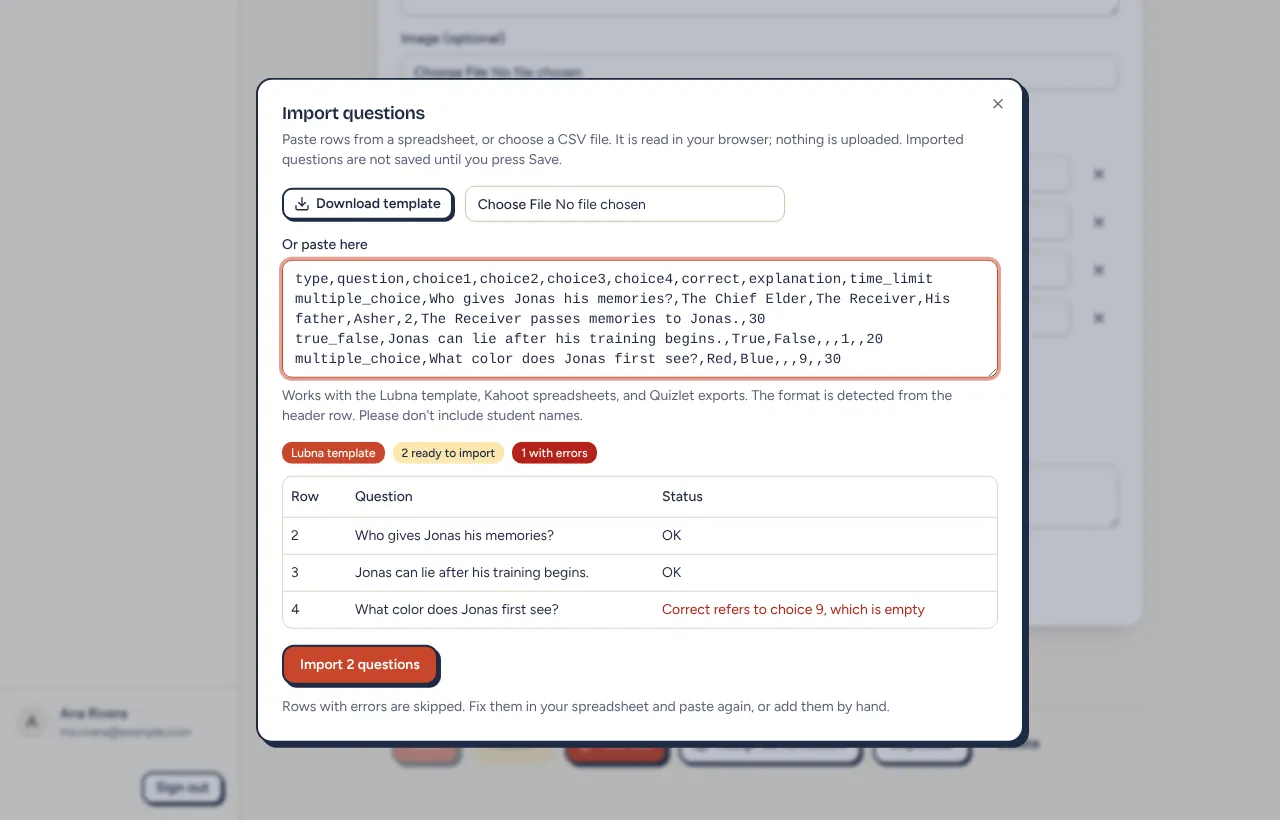
- Select Download template if you want a starter file, or choose your own file. You can also paste rows into the box marked Or paste here.
- Check the preview.
- Select Import (for example, Import 12 questions).
Importing happens in your browser. Nothing is uploaded, and nothing is saved until you select Save. Files must be under 1 MB. Please keep student names out of your spreadsheet.
Supported formats
Section titled “Supported formats”Lubna works out which format you have from the header row.
- Lubna template. Columns:
type,question,choice1tochoice6,correct,explanation,time_limit. Thetypecan bemultiple_choice,true_false,short_answer,poll,multi_selectorordering. Incorrect, give the choice number (2), several numbers for select-all (1;3), 1 or 2 for true/false (1 is True), or the accepted answers separated by semicolons for short answer. Polls and ordering leave it blank. Usenonefor no time limit. - Kahoot spreadsheet. The layout of Kahoot’s public template: Question, Answer 1 to Answer 4, Time limit and Correct answer(s). Two answers of True and False become a true/false question, and several correct answers become select-all. Time limits outside 5 to 300 seconds are adjusted, and the preview tells you. Lubna built this from the publicly known template, so check the preview for your own export.
- Quizlet export. Two columns, term and definition, with no header needed. Each card becomes a short answer question. A menu asks which way to ask it: Show the definition, answer is the term, or Show the term, answer is the definition.
Preview and errors
Section titled “Preview and errors”The preview shows a badge for the format, how many rows are ready to import, and how many have errors. The table lists each row with its question and a status. Valid rows say “OK”. A row with a problem shows what is wrong, such as “Correct refers to choice 3, which is empty”.
Rows with errors are skipped. Fix them in your spreadsheet and paste again, or add those questions by hand. A quiz holds up to 100 questions. If you go over, the last valid rows are left out and Lubna tells you how many.
Export a quiz
Section titled “Export a quiz”Select Export CSV under the questions. Lubna downloads a file named after your quiz in the same Lubna template format, so you can import it back later or edit it in a spreadsheet.
The export does not include images, per-choice feedback or standards. Those stay in Lubna.
Results can be exported too, with student answers. See Quiz results.