
Your dashboard
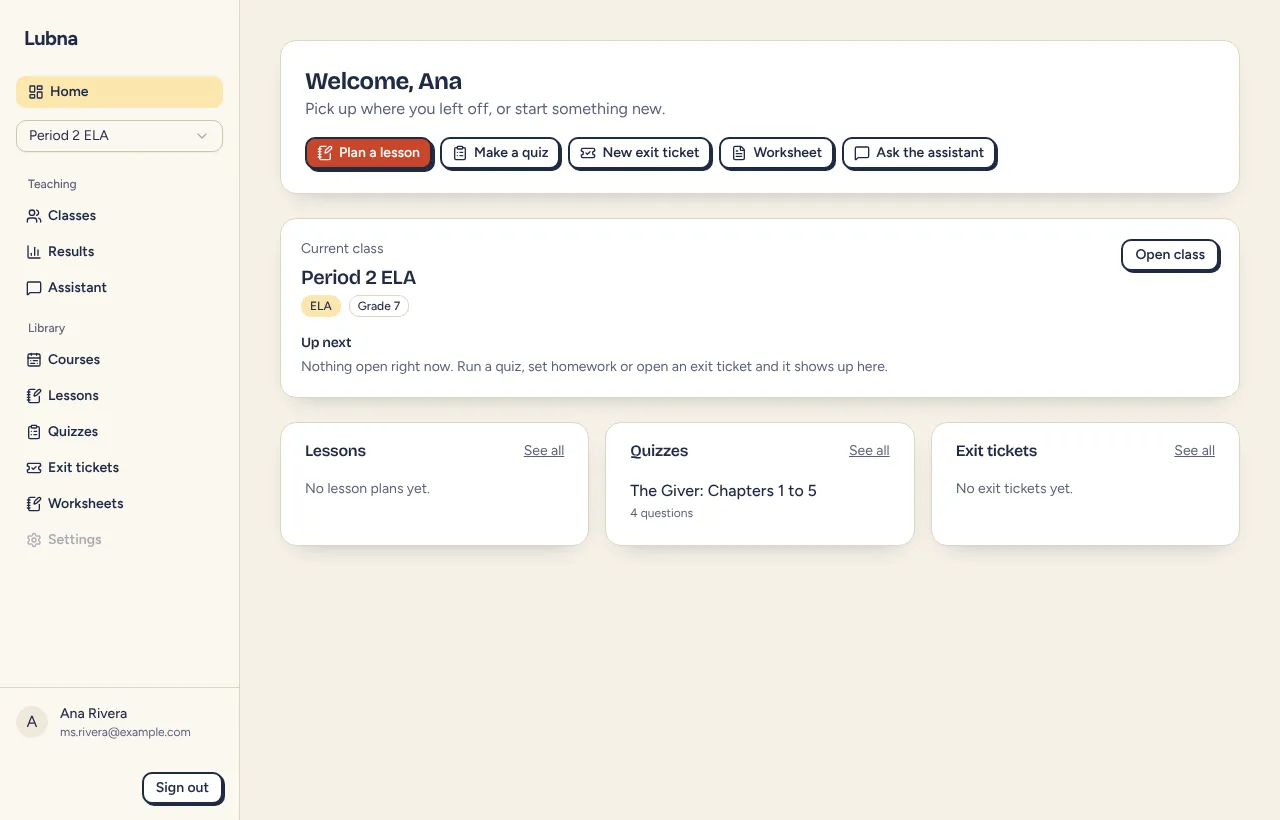
The dashboard is where you land after you sign in. It shows what needs your attention and gives you quick ways to start new work.
The first time
Section titled “The first time”When you have no classes, quizzes or lessons yet, the home page says “Lubna is ready when you are” and shows three steps:
- Create a class: add your students as codes.
- Plan a lesson: draft a lesson with the assistant.
- Make a quiz: build a live, game-style quiz.
Select a step to jump straight in. Once you have made something, these steps are replaced by the regular home page.
Quick actions
Section titled “Quick actions”At the top you see buttons to start new work:
- Plan a lesson
- Make a quiz
- New exit ticket
- Worksheet
- Ask the assistant
Current class and Up next
Section titled “Current class and Up next”Below the quick actions is a panel for your current class, with its subject and grade. Select Open class to go to the class workspace.
Up next lists open work for that class, most urgent first:
- Live quizzes running now (you can return to the ones you host)
- Homework that is still open, soonest due first
- Open exit tickets
- Conference events that have not ended
It shows up to five items. If nothing is open, it tells you so. If you have not picked a class, it shows open work from all your classes, with the class name beside each item, and the button says See classes.
Recent items
Section titled “Recent items”Under that, three lists show your newest Lessons, Quizzes and Exit tickets. Select See all to open the full list.
The sidebar
Section titled “The sidebar”The sidebar is on the left, or across the top on a phone.
- Home brings you back to the dashboard.
- The Workspace menu appears only if you belong to a school. See below.
- The class menu lets you choose your current class. See below.
- Teaching has Classes, Results and Assistant.
- Library has Courses, Lessons, Quizzes, Exit tickets and Worksheets.
- Admin appears only if you are a district or school admin. See Teaching policy.
- Sign out is at the bottom.
Switch workspaces
Section titled “Switch workspaces”If the Lubna team has added you to a school, a Workspace menu sits under Home. It lists My classes, your own space, and each school you belong to. Choose one to switch. You go back to the dashboard, and your classes, quizzes and lessons change to match that workspace. New things you make go into the workspace you are in. See Schools and districts.
Switch classes
Section titled “Switch classes”If you have a class, the class menu sits under Home. Choose a class to open its workspace and make it your current class. Choose All classes to clear it and see your class list.
Your current class is used to preselect the class on quiz, homework and conference forms.
Live quiz banner
Section titled “Live quiz banner”While you are hosting a quiz that is in the lobby or running, a small banner appears at the top of the Quizzes page. It reads “Quiz live” and shows the quiz title with a Return link back to the host screen. It checks again every 30 seconds. See Run a live quiz.
Good to know
Section titled “Good to know”- Each list on the home page loads on its own, so one problem will not blank the page.
- Student names do not appear on the dashboard. Names are filled in from your browser only where you view a class.