
Run a live quiz
A live quiz is a game your whole class plays together. You show the questions on the projector, students answer on their own devices, and a leaderboard builds as you go.
Start a live quiz
Section titled “Start a live quiz”- Open Quizzes and choose a published quiz. (Drafts must be published first. See Create a quiz.)
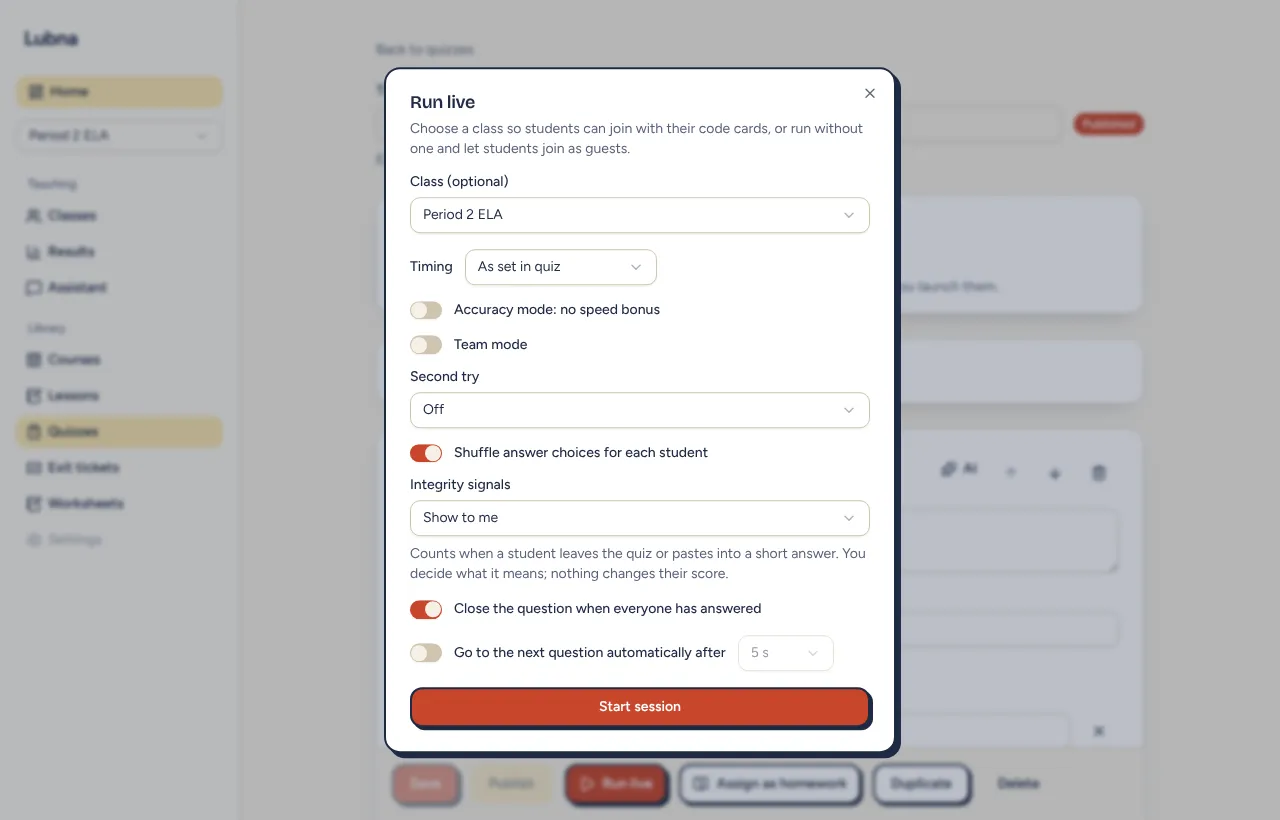
- Select Run live.
- Pick a class, or leave it as No class (guests only). With a class, students join with their code cards and you can see which student is which. Without one, students join as guests.
- Adjust the settings if you like. They are explained in Live quiz settings. The defaults work well for most classes.
- Select Start session.
You land on the host screen. Project it for your class.
The lobby
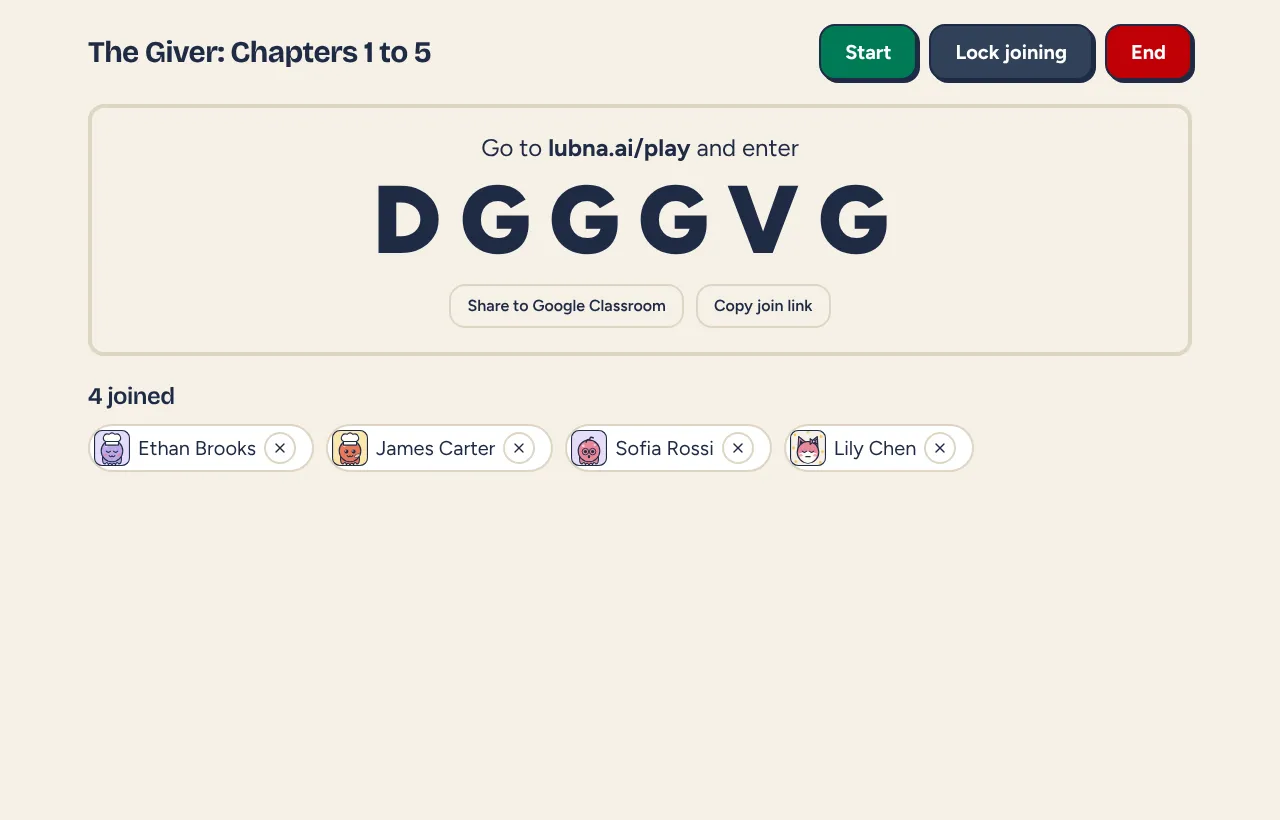
Section titled “The lobby”The lobby shows the web address students go to and a large join code. Students open the address and enter the code. Each student who joins appears on your screen with their avatar.
Two buttons help you share:
- Copy join link copies a link that opens the join screen with the code filled in.
- Share to Google Classroom opens Google’s share page so you can post the link to a class.
The Start button turns on once at least one player has joined. In team mode, the lobby groups players by team. See Live quiz settings.
Run the questions
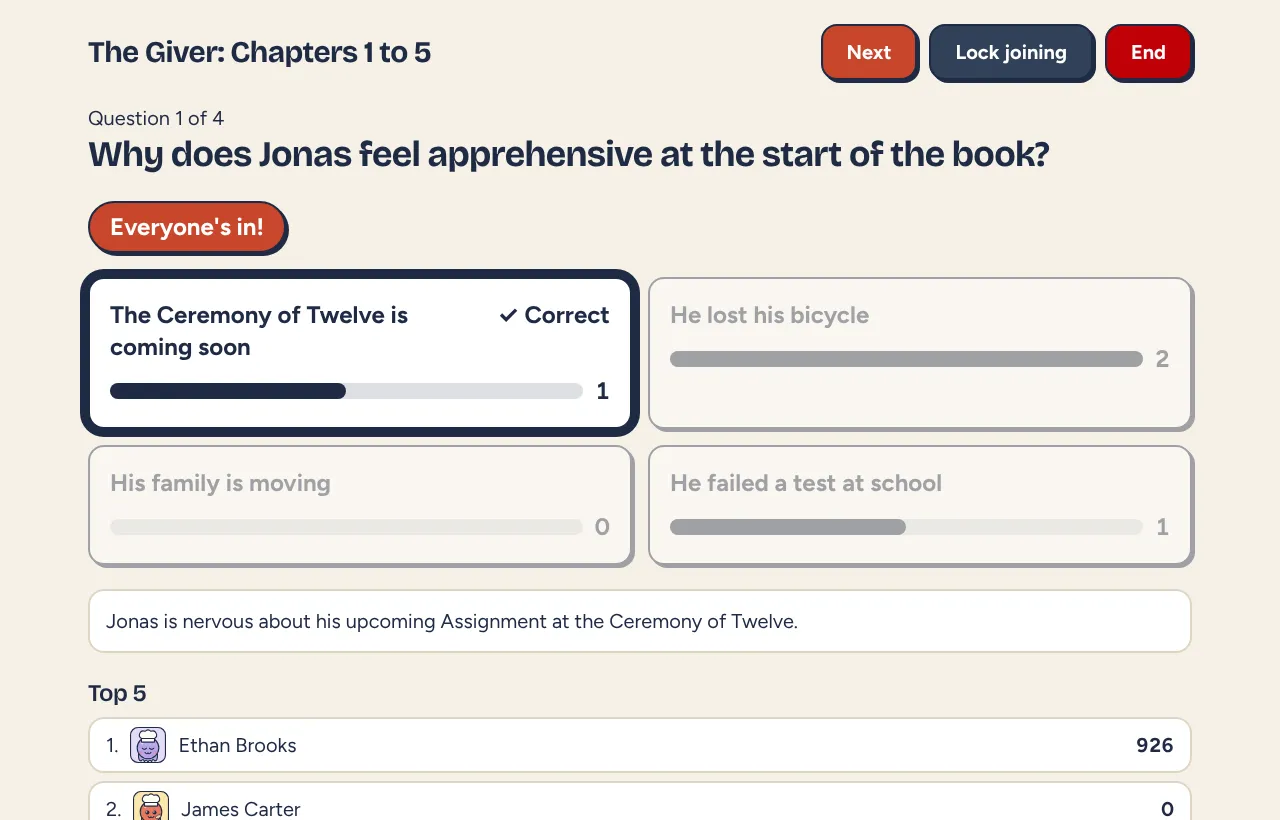
Section titled “Run the questions”Select Start to show the first question. The screen shows the question, the choices and a countdown, plus a live count such as “12 of 24 answered”.
The buttons across the top change with the moment:
- Pause freezes the clock and stops answers, and the screen tells students it is paused. Select Resume to carry on. Time spent paused does not cost speed points.
- +15 s adds 15 seconds when a question has a time limit.
- Close question ends the question now. Questions also close when the timer runs out, or when everyone has answered if auto-close is on.
- Next moves on after the reveal. On the last question it reads Finish.
- Hold appears if you turned on automatic next question. It stops the countdown so you can talk. You can still select Next to go early.
The reveal
Section titled “The reveal”When a question closes, everyone sees the correct answer, how many students picked each choice, and your explanation if you wrote one. If every student answered before the timer ended, a banner reads “Everyone’s in!”. The top 5 leaderboard follows, and team standings if you use teams. Short answer questions show no key here. They are graded afterward.
Manage players
Section titled “Manage players”Each player has an X button. Selecting it, then confirming, removes that student. See Live quiz settings for locking joining and what the eye symbol means.
End the quiz
Section titled “End the quiz”After the last question, select Finish, or select End at any time and confirm “End this session for everyone?” The final screen shows Quiz finished, the number of players, and the Final top 5. Select View results to open the full results. See Quiz results.
Return to a live quiz
Section titled “Return to a live quiz”Closed your laptop, or opened another page? A live quiz keeps running, and you can get back to it:
- On the Quizzes page, a bar at the top shows Quiz live with a Return link.
- Open the quiz itself and select Return to quiz in the banner.
- Open Results in the sidebar (the Sessions page), or the class Activities tab. A live session is marked Return to quiz.
Good to know
Section titled “Good to know”- Students’ names stay in your browser. The game servers only know codes, nicknames or guest labels.
- Players see the same questions on their own device. They do not see the other players list.
- If you close the host page by accident, the game does not stop. Return to it using the steps above.